

Codespaces Setup
You can use GitHub Codespaces to setup a Frappe development environment in just a click! You will only need a free GitHub account to do this.
Here are the steps:
-
Visit this repository
-
Click on the
Codebutton, and then onCreate codespace on master: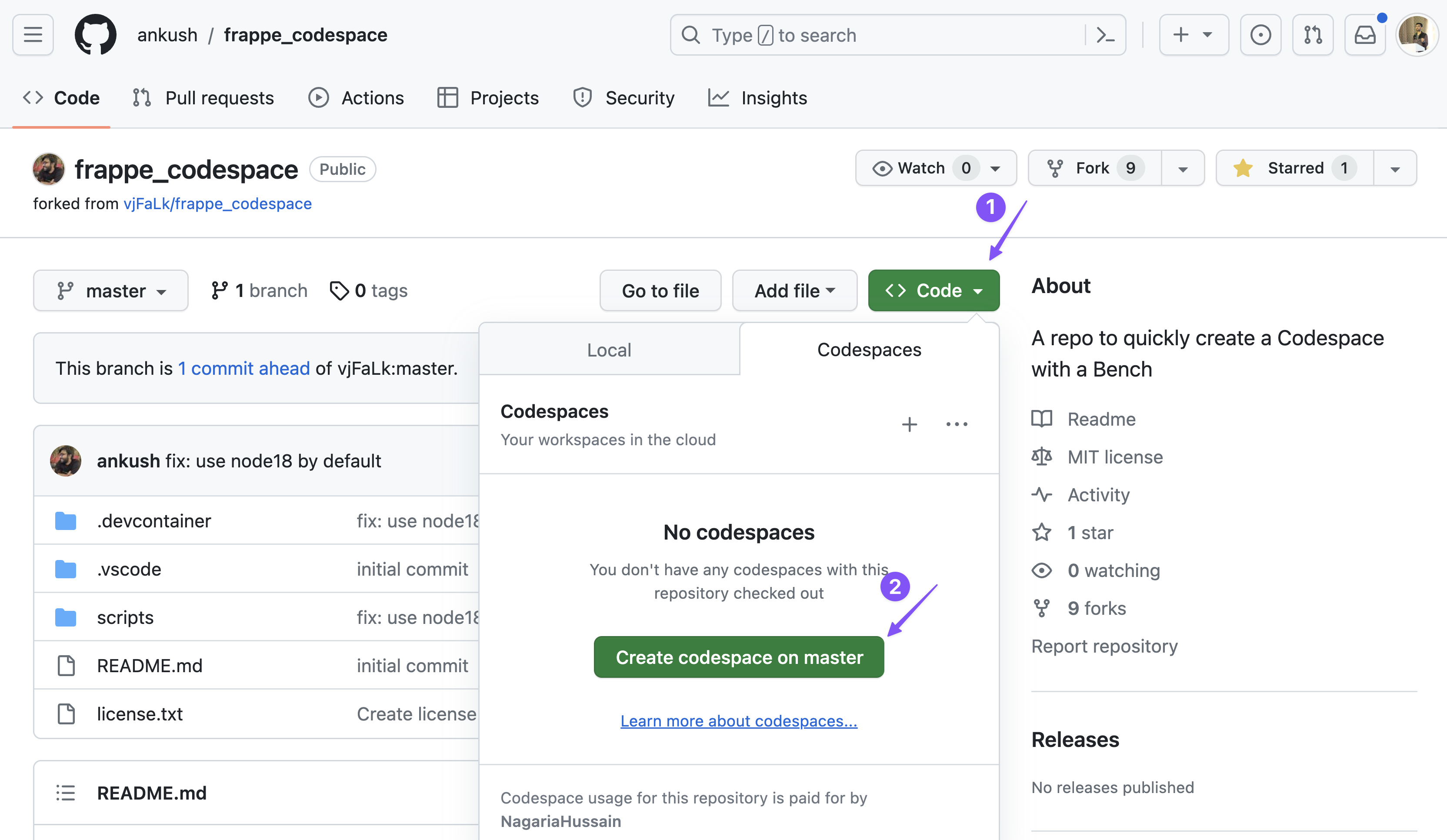
-
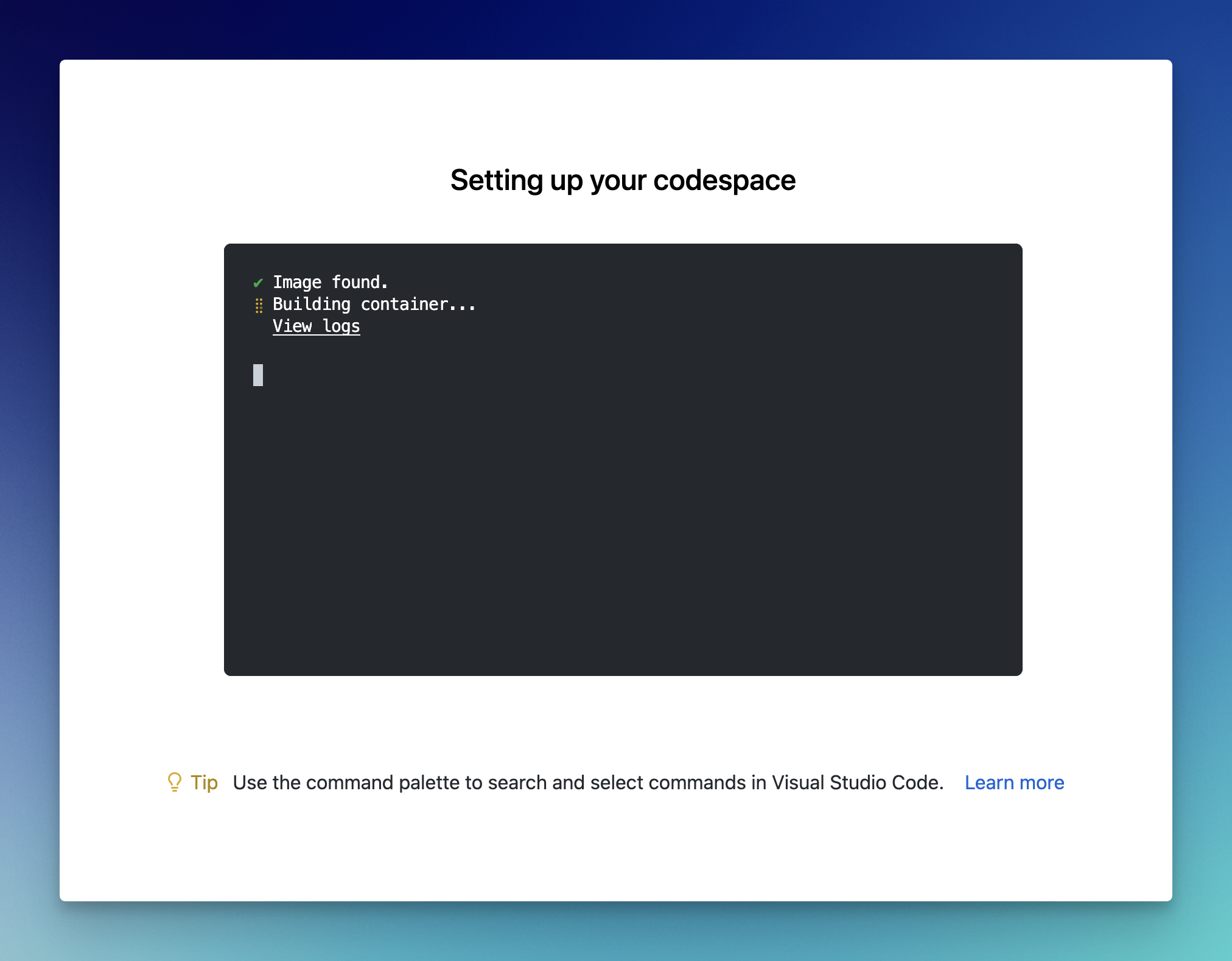
Wait for the codespace to boot up (behind the scenes containers are being bought up!):
-
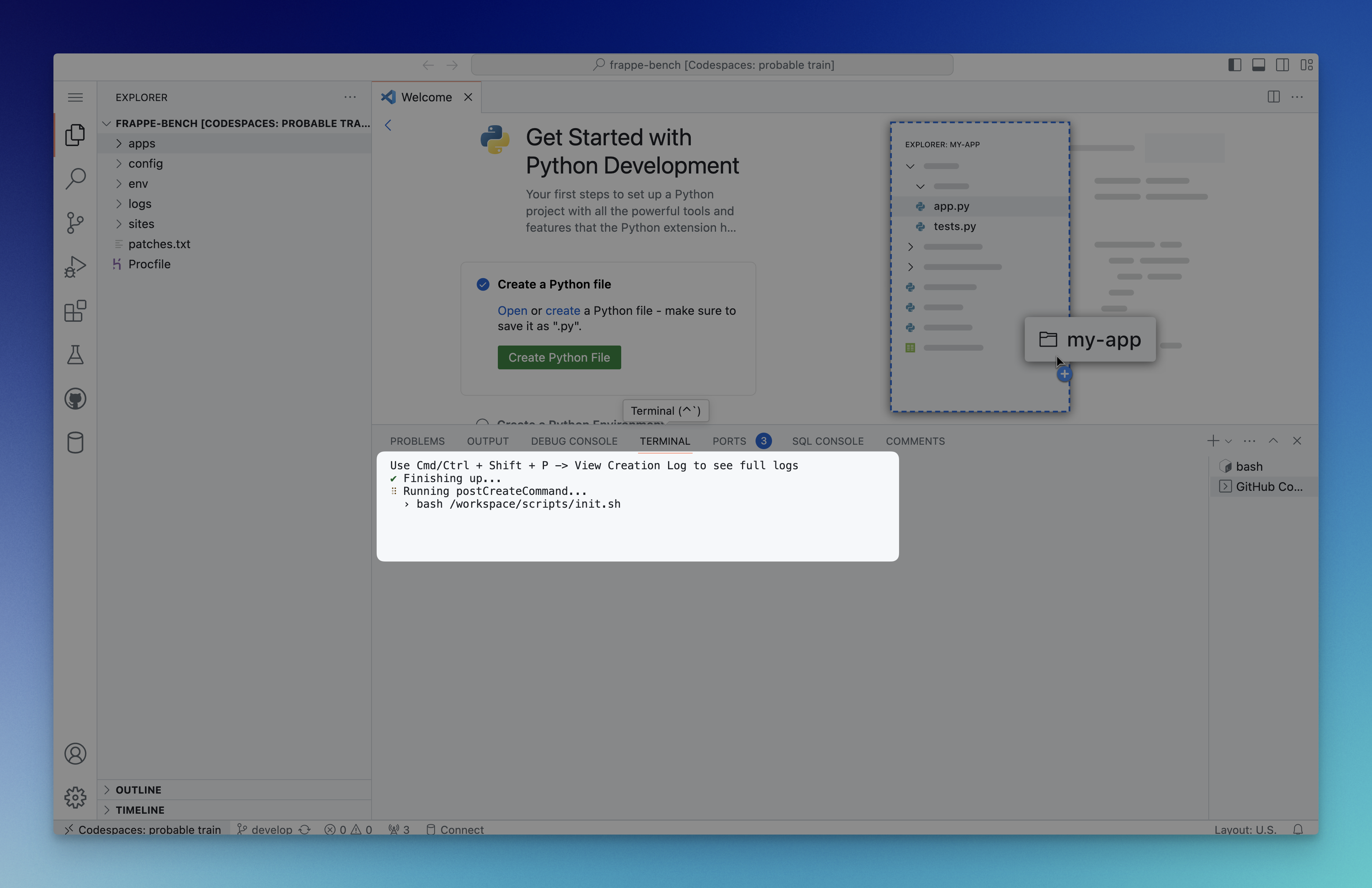
Once the codespace is created, it will open up a code editor (VS Code) right in your browser, with terminal and everything! Wait for a few seconds for the initialization script to complete:
-
After the script is done running, you can check your installation by running
bench --versionand then start the bench by runningbench start: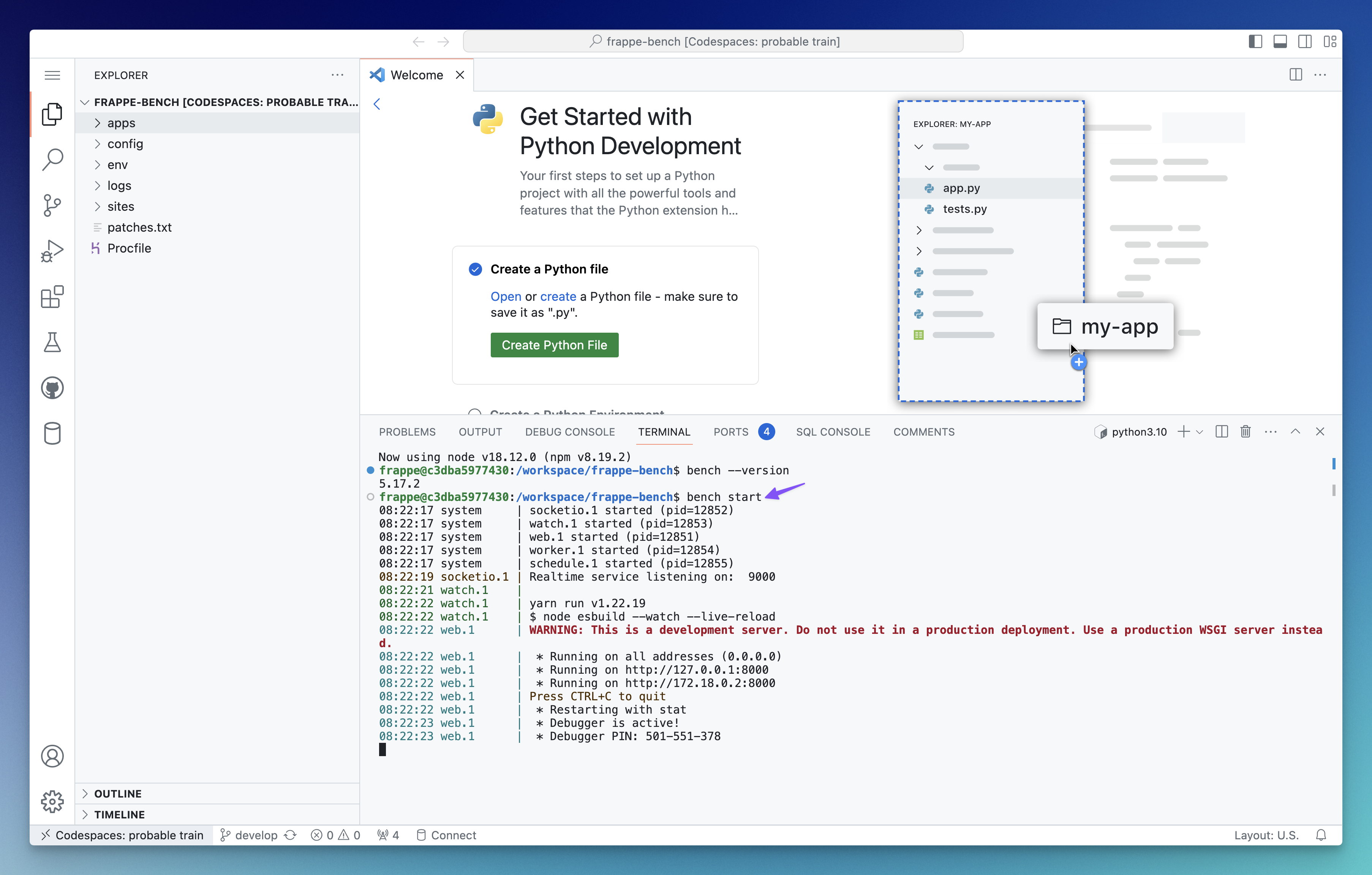
This will start the bench.
-
Visit the ports tab and click on the browser icon next to port
8000(the web server runs on this port):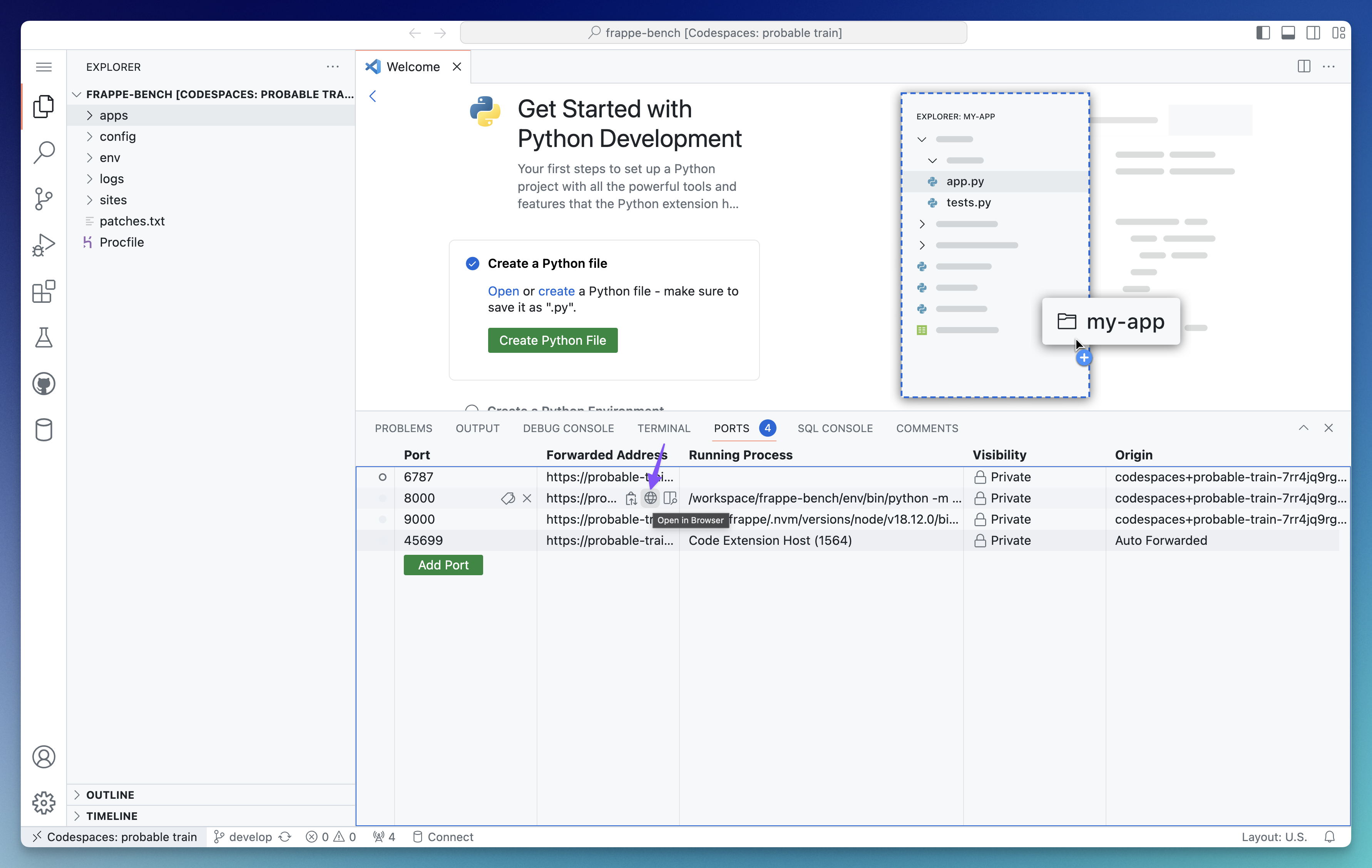
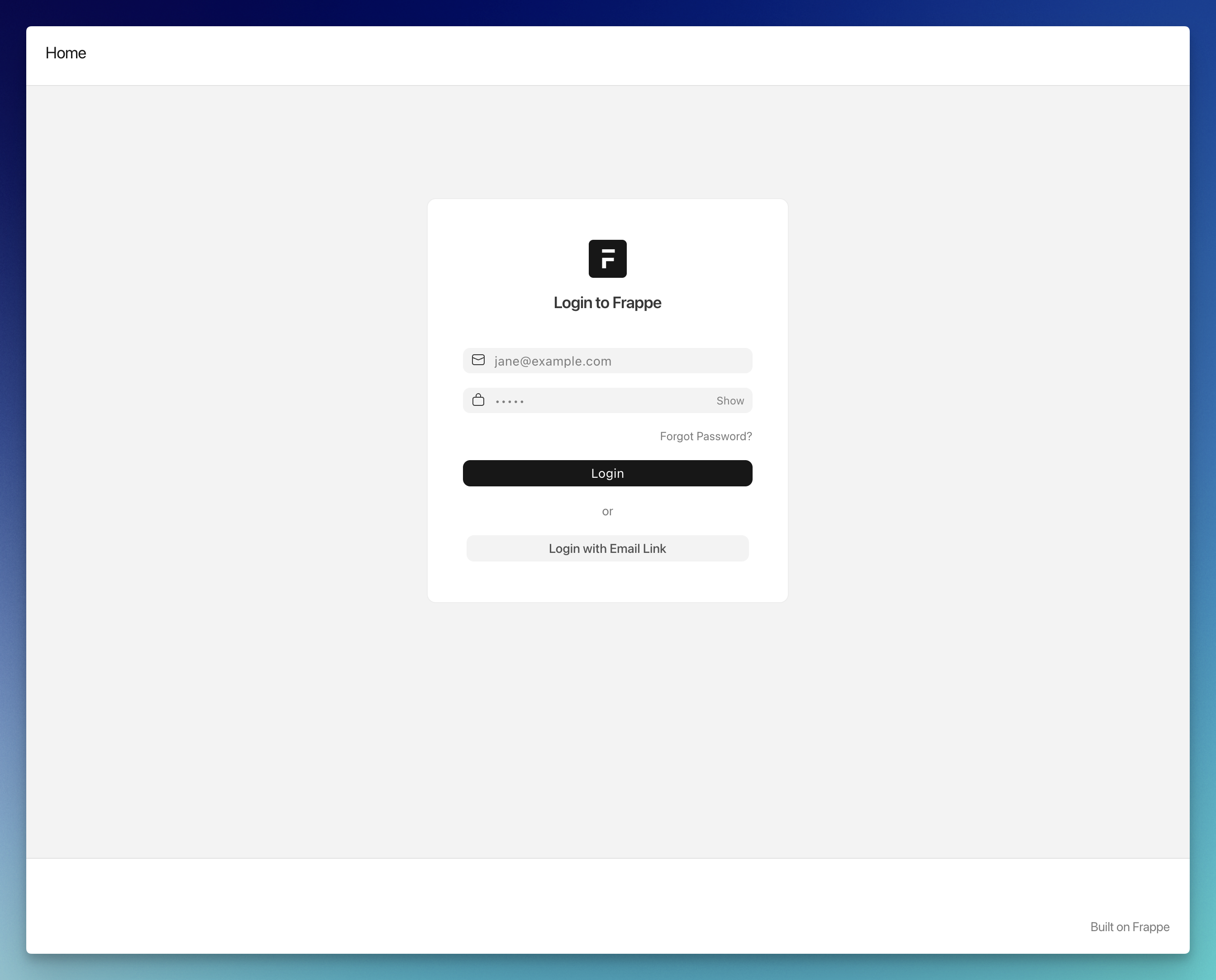
Voila! This will open up the site in a new tab:
Credentials
Section titled “Credentials”- For the site created by default use
Administratorandadminas username and password respectively. - MariaDB Root Password:
123
Opening Codespace Locally
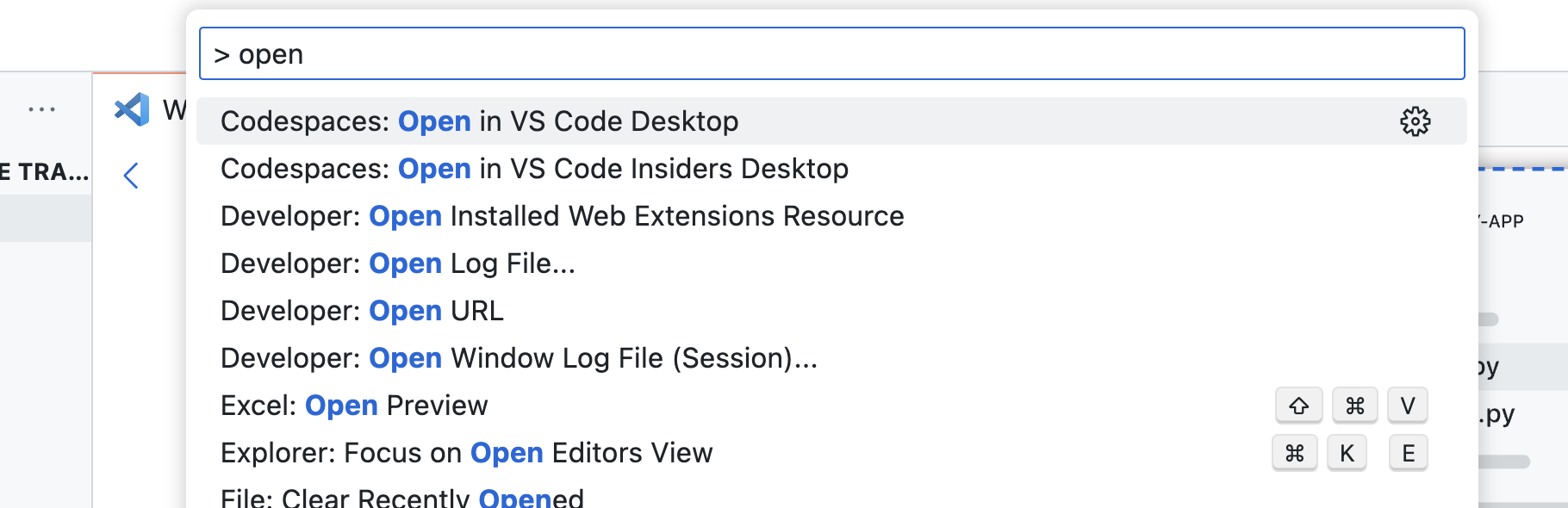
Section titled “Opening Codespace Locally”You can also open your codespace in your local VS Code by opening up command palette (Cmd + Shift + P) and running:
Creating and Using a new site [Codespaces]
Section titled “Creating and Using a new site [Codespaces]”Codespace already comes with a site created (dev.localhost). If you want to create more sites, make sure you do that using these commands:
bench new-site <your-site-name> --mariadb-root-password 123 --admin-password admin --no-mariadb-socket
bench --site <your-site-name> set-config developer_mode 1bench --site <your-site-name> clear-cache
Using a site (restart bench after running this):
bench use <your-site-name>
benchruns only in single tenant mode (only 1 site can be served at a time) in codespaces as of now